
Download UltFone Android Data Recovery – Fast, Secure Android Data Recovery Tool
Overview of UltFone Android Data Recovery
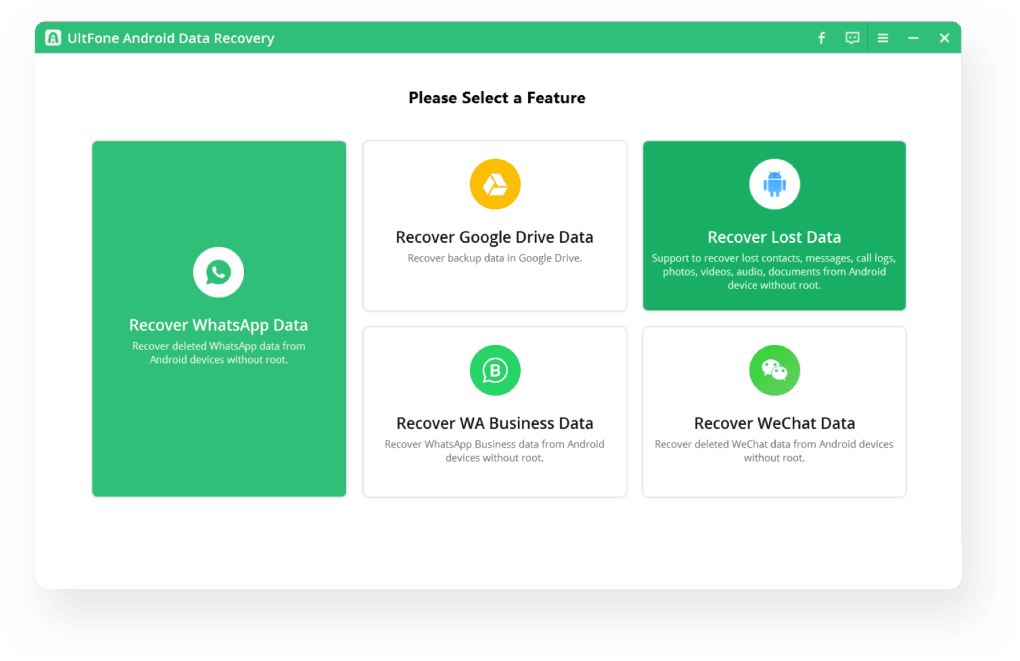
UltFone Android Data Recovery is a premium desktop‑based solution designed to retrieve lost files from Android smartphones without the need for rooting. Built for both novice and advanced users, the software promises a safe, warranty‑friendly recovery experience across more than 7,000 Android models. Whether you have accidentally deleted photos, wiped contacts, or lost WhatsApp Business chats after a system crash, UltFone offers a single‑click pathway to restore your data from the device’s internal memory, SD card, or cloud backups such as Google Drive.
The tool distinguishes itself by supporting a broad spectrum of file types—including images, videos, documents, and app‑specific data like WeChat and WhatsApp Business—making it a versatile addition to any Android troubleshooting toolkit. While the application runs on a Windows or macOS computer, its user‑friendly interface guides you step‑by‑step, eliminating the steep learning curve often associated with data recovery utilities. Though it carries a price tag, the reliability, comprehensive feature set, and the peace of mind of a non‑rooted recovery process justify the investment for many Android owners.
Key Features and How UltFone Works
- Root‑free recovery – no warranty risk.
- Supports over 7,000 Android devices, covering most manufacturers.
- Multi‑source scanning – internal storage, SD card, Google Drive, and popular messaging apps (WhatsApp Business, WeChat, etc.).
- Wide file type coverage: photos, videos, audio, contacts, call logs, messages, documents, and app data.
- Three recovery modes: Quick Scan, Deep Scan, and Partition Scan for stubborn cases.
- Preview before recovery – see file thumbnails and details.
- Selective recovery – choose specific files or entire folders.
- Secure data handling – all recovered files are saved locally on your computer, never uploaded to the cloud.
- One‑click export to PC, with optional direct upload to cloud storage services.
How the Recovery Process Unfolds
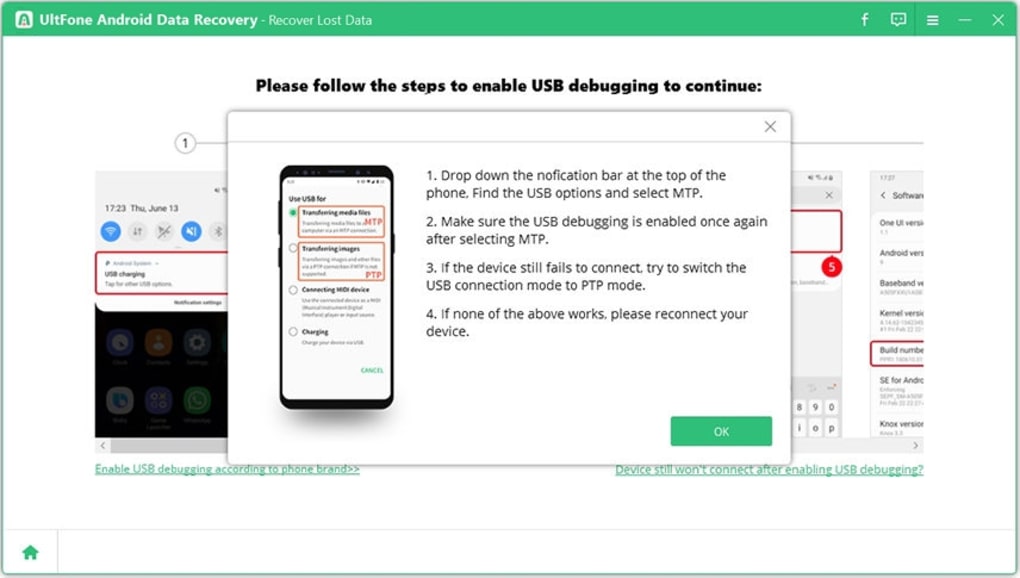
The software follows a logical workflow that minimizes user error. After launching UltFone on your computer, you connect your Android device via a USB cable. The program automatically detects the phone and prompts you to enable USB debugging, a standard Android developer setting that grants the software read access to the device’s file system.
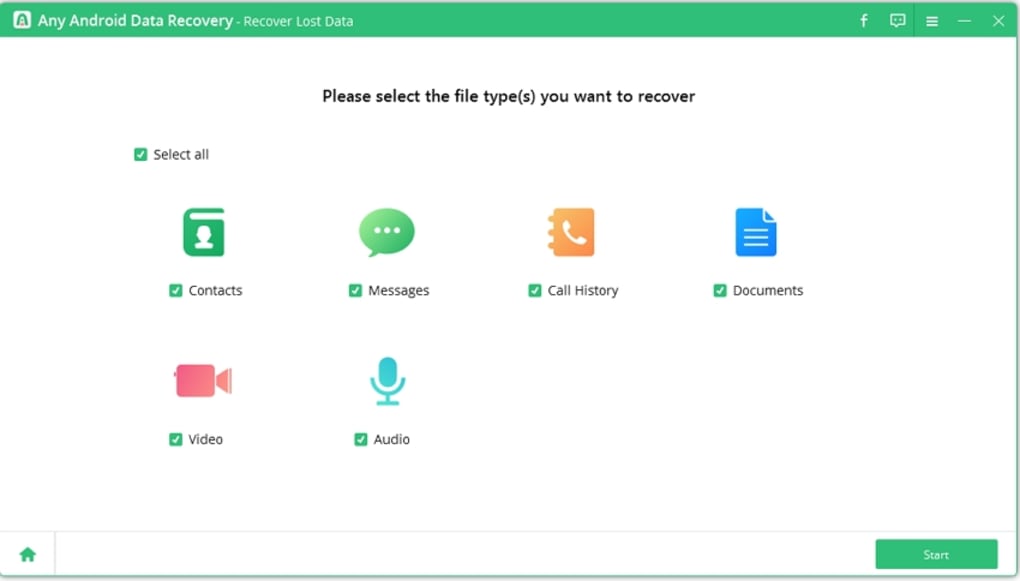
Once the connection is confirmed, you select the type of data you wish to recover—photos, messages, or app-specific content. The Quick Scan mode runs within minutes, locating recently deleted files that have not been overwritten. For more complex scenarios, such as a corrupted partition or a factory reset, the Deep Scan mode performs a sector‑by‑sector analysis, reconstructing file signatures to retrieve data that standard scans miss.
Throughout the scan, a real‑time progress bar and estimated time keep you informed. After scanning, a preview pane displays recoverable files with thumbnails, allowing you to confirm the integrity of each item before clicking the “Recover” button. The recovered files are saved to a user‑specified folder on your PC, ensuring that your phone’s storage remains untouched during the process.
Installation, Usage Instructions, and Compatibility
Step‑by‑Step Installation Guide
1. Download the installer: Visit the official UltFone website and click the “Download for Windows” or “Download for macOS” button, depending on your computer’s operating system. The file size is approximately 80 MB, and the download is secured via HTTPS.
2. Run the installer: Locate the downloaded .exe (Windows) or .dmg (macOS) file and double‑click to launch the setup wizard. Follow the on‑screen prompts—accept the license agreement, choose an installation directory, and click “Install.” The process typically completes within 2–3 minutes.
3. Launch the application: After installation, open UltFone Android Data Recovery from the desktop shortcut or the Start/Menu folder. The first launch may request administrator privileges; grant them to ensure full device access.
4. Activate your license: If you purchased a license key, enter it in the “Activate” window. A 30‑day free trial is also available, allowing you to scan and preview recoverable files before committing to a purchase.
5. Connect your Android device: Use a USB‑type‑C, micro‑USB, or Lightning cable (for certain Android tablets) to link the phone to the computer. Enable “USB debugging” in Settings → Developer options.
If Developer options are hidden, tap “Build number” seven times to reveal them.
Using UltFone to Recover Data
Once your device is recognized, choose the recovery scenario that matches your loss: “Accidental Deletion,” “System Crash,” or “App Data Recovery.” Select the file categories you need, then click “Start Scan.” After the scan finishes, browse the results using the left‑hand filter pane. The preview window lets you open images, play videos, or read text messages directly within the app. To recover, tick the checkboxes next to desired files and press “Recover.” A dialog box will ask you to confirm the destination folder—pick a location on your PC with sufficient free space. The software then copies the selected files, preserving original timestamps and metadata. Finally, safely eject your Android device via the operating system’s “Safely Remove Hardware” option before unplugging the cable.
UltFone Android Data Recovery is compatible with Windows 10/11 (64‑bit) and macOS 10.15 (Catalina) or later. The program requires at least 2 GB of RAM, 500 MB of free disk space for installation, and a USB 2.0/3.0 port for data transfer. While the core functionality works on any modern Android version (4.4 KitKat and up), the best results are achieved on Android 9 (Pie) and newer, where the file system structure is more consistent.
Pros, Cons, and Frequently Asked Questions
Pros
- Root‑free recovery keeps the device warranty intact.
- Supports a massive list of Android models and file types.
- Intuitive UI with step‑by‑step guidance.
- Preview function prevents unnecessary recovery of corrupted files.
- Ability to recover data from cloud backups and messaging apps.
Cons
- Requires a Windows or macOS computer; no standalone mobile app.
- Paid software; free alternatives exist but lack full feature set.
- Deep Scan can be time‑consuming on large storage devices.
- USB cable quality may affect detection speed and stability.
FAQ – Frequently Asked Questions
Do I need to root my Android phone to use UltFone?
No. UltFone Android Data Recovery works completely without rooting, preserving your device’s warranty and security settings.
Can I recover deleted WhatsApp Business chats?
Yes. The software scans WhatsApp Business databases on internal storage and can restore messages, media, and attachments.
What if my phone is not recognized by the computer?
Ensure USB debugging is enabled, use a high‑quality data cable, and install the appropriate USB drivers (Windows) or allow the device to trust the computer (macOS). Restarting both devices often resolves detection issues.
Is there a trial version I can test before buying?
UltFone offers a 30‑day free trial that lets you scan and preview recoverable files. To recover files, you’ll need to purchase a license.
Can I recover data from a corrupted SD card?
Yes. Using the Deep Scan mode, UltFone can read damaged sectors on an SD card and retrieve photos, videos, and documents that are otherwise inaccessible.
Conclusion and Call to Action
UltFone Android Data Recovery stands out as a reliable, root‑free solution for anyone who has experienced accidental deletions, system crashes, or lost app data on their Android device. Its extensive device compatibility, comprehensive file‑type support, and user‑centric design make it a top choice for both casual users and professionals handling multiple smartphones. While the requirement for a desktop computer and the premium price may deter some, the peace of mind that comes from a secure, warranty‑safe recovery process often outweighs those drawbacks. If you’re looking for a trustworthy tool that can bring back precious photos, vital contacts, and essential messaging history without compromising your phone’s integrity, UltFone Android Data Recovery is worth the investment.
Ready to reclaim your lost data? Download UltFone Android Data Recovery now, start your free trial, and experience the fastest, most secure Android recovery solution on the market.







